
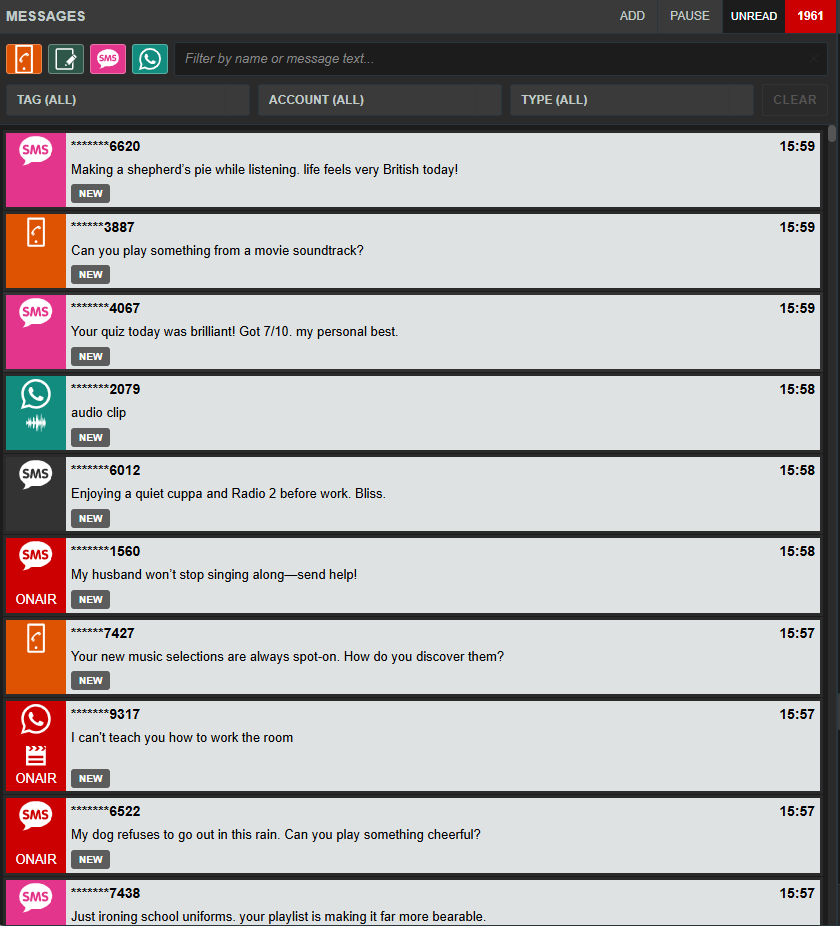
The Message Queue is a consolidated list of all messages from all the sources assigned to your team.
Each message may also show additional sender and status specific information such as:
- whether the contributor is NEW
- how many recent messages a sender has sent
- whether the message is EDITED
- whether the message has been USED On Air
- whether the message is in the active ON AIR Queue
Filtering
At the top of the Message Queue is the filter area. Filters help you narrow the queue so you can focus on the messages most relevant to your programme or current workflow.

You can filter by:
- Message type
Select by WhatsApp, SMS, Smart Speaker etc. - Tag
- Text or keywords
Text filter on Sender Name, Number, Incoming Keyword, or Message Text.
You can separate multiple search terms into a comma separated list.
Click the down arrow to the right to view/restore the last 5 searches. - Messaging account
Messages from a specific number or account - Media type
Contacts Image, Video or Voicenote attachments - Message status
Used On Air, On Air Queue
For detailed information about filtering, see the Filtering the Message Queue guide : here
Selecting a Message
Once you have found a message you want to work with, select it.

Selecting a message does two things:
- it highlights the message and marks it as read
- it opens the action options available for that item
You can move between selected messages using the up and down arrow keys, or by clicking on another message in the queue.
Along the bottom of the selected message is a row of action keys. These are the tools you use to decide what to do next. You can access them either with the mouse or with the keyboard.
The first action selected by default is On Air so selecting a message and pressing enter will add or remove that message quickly from the Onair Air Queue.
For more detailed guidance on working with a selected message and the available action buttons, see the related guides: