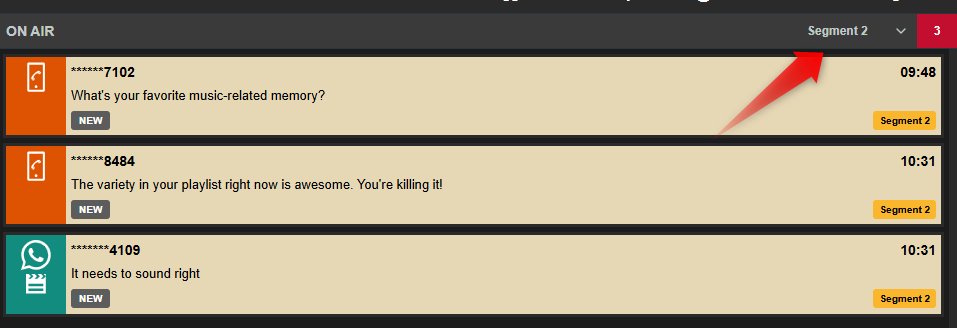
Tags are one of the most useful ways to organise messages.
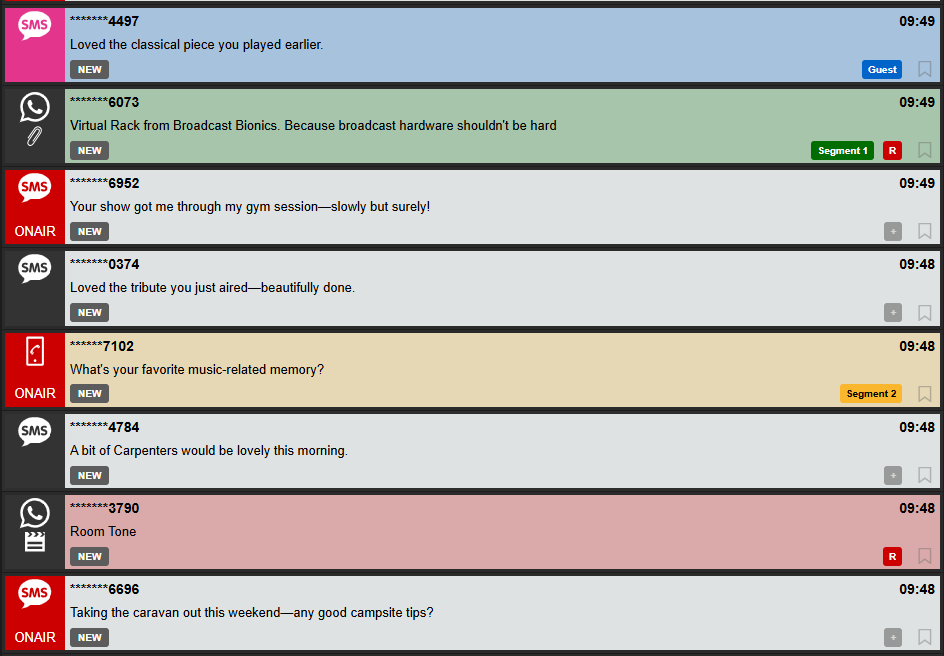
Tags can be set or unset by clicking on any existing tag, the + tag icon to the right of each message or clicking the TAG button to the right of any selected message.
Messages tint according to the colour of the lowest order tag applied. This tint updates if you apply a tag filter to show the filtered tag colour.
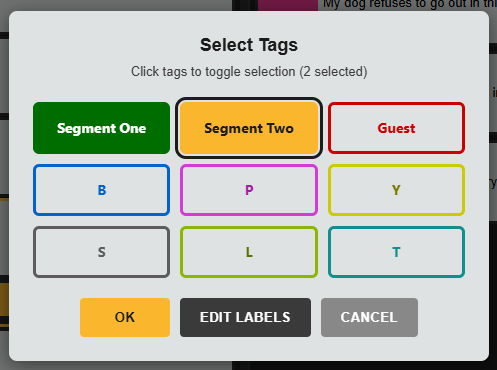
Each team has up to nine tags available by default. These usually appear as colours, and a single message can have more than one tag applied to it.
Tags help you group messages in meaningful ways. For example, you might use them for:
- different presenters
- programme segments
- guest sections
- topics
- competition phases
- priority categories
A message can be tagged before or after it is placed in the On Air Queue. Once it is in the On Air Queue, the tag is also visible there.
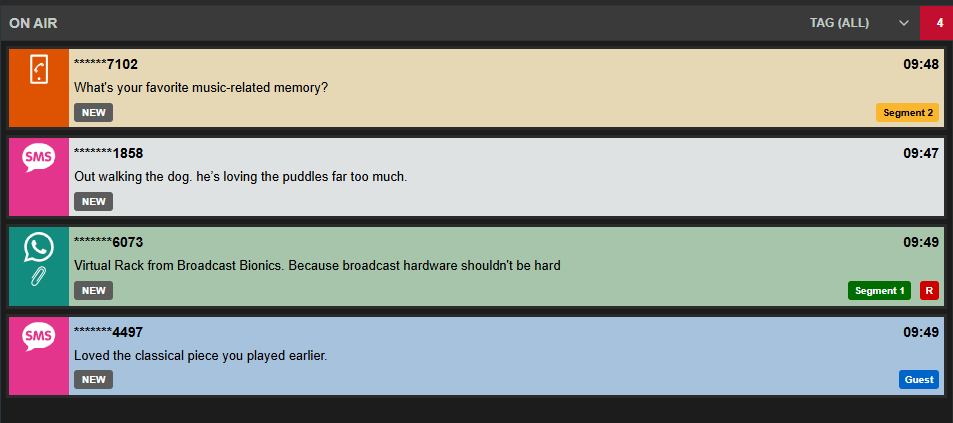
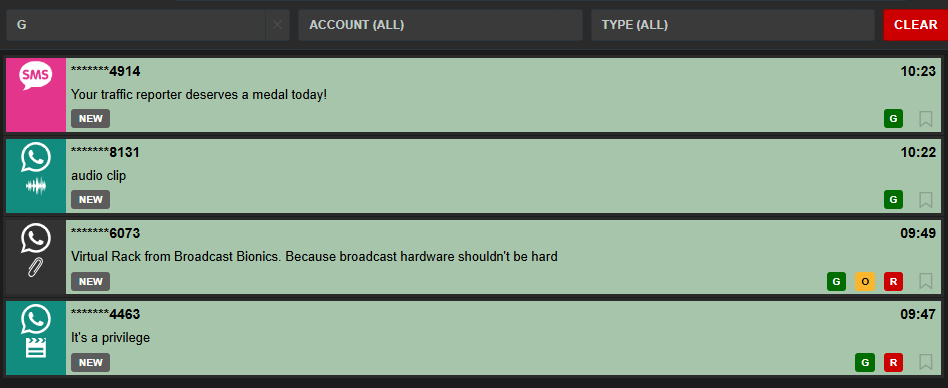
You can filter the Message Queue by tag to see only messages matching a certain category. This makes it much easier to move quickly between different parts of a programme.
Using Tags in Practice
For example, you might use:
- red for the first segment
- green for the second segment
- blue for guest items later in the show
- different colours to direct messages to different presenters
The presenter can then switch views depending on what part of the programme they are currently in.
Editing Tag Labels
You do not have to use colours alone, you can rename tag labels to make them clearer. These labels are associated only for your team.
For example:
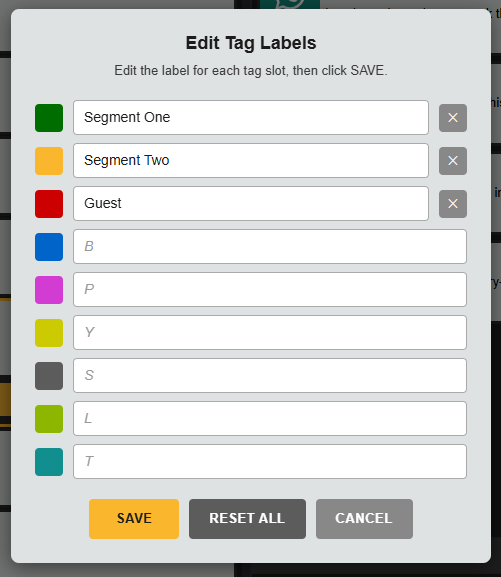
Once saved, these custom labels appear wherever the tags are shown, including in the On Air Queue and Presenter View.
This makes the workflow easier to understand at a glance, especially for teams using the same tags repeatedly across a programme.
Tag Filtering
It is quick to filter the Message Queue or On Air Queues to display messages only for a particular tag. This allows you to find these messages or switch the On Air Queue between topics or show only certain messages to a particular presenter.