
At the top of the Message Queue is the filter area. Any filter you apply updates the queue immediately.

The Message Queue can contain a large number of messages during a live programme, filters help you focus on the messages that matter most. You can use filters to narrow the queue by message type, by text, and by other message attributes.
Filter by message type
You can filter the queue to show only a specific type of message.
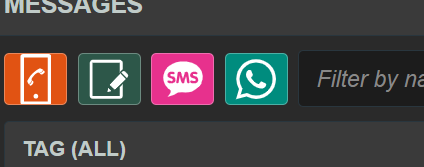
Examples include:
- SMS
- Manual producer notes
- Smart speaker or in-house app messages
Filter to show Bookmarked messages
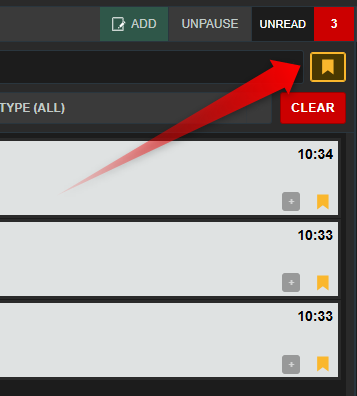
Toggling the bookmark filter enables you to quickly view only your bookmarked messages.
Filter by text
You can also search for words or phrases within messages.
For example, you might filter for:
- a topic such as “music”
- a keyword linked to a competition
- a contributor name
- a phrase you expect listeners to use
Text filtering is live. That means the queue shows both earlier matching messages and any new incoming messages that match while the filter is active.
Additional filters
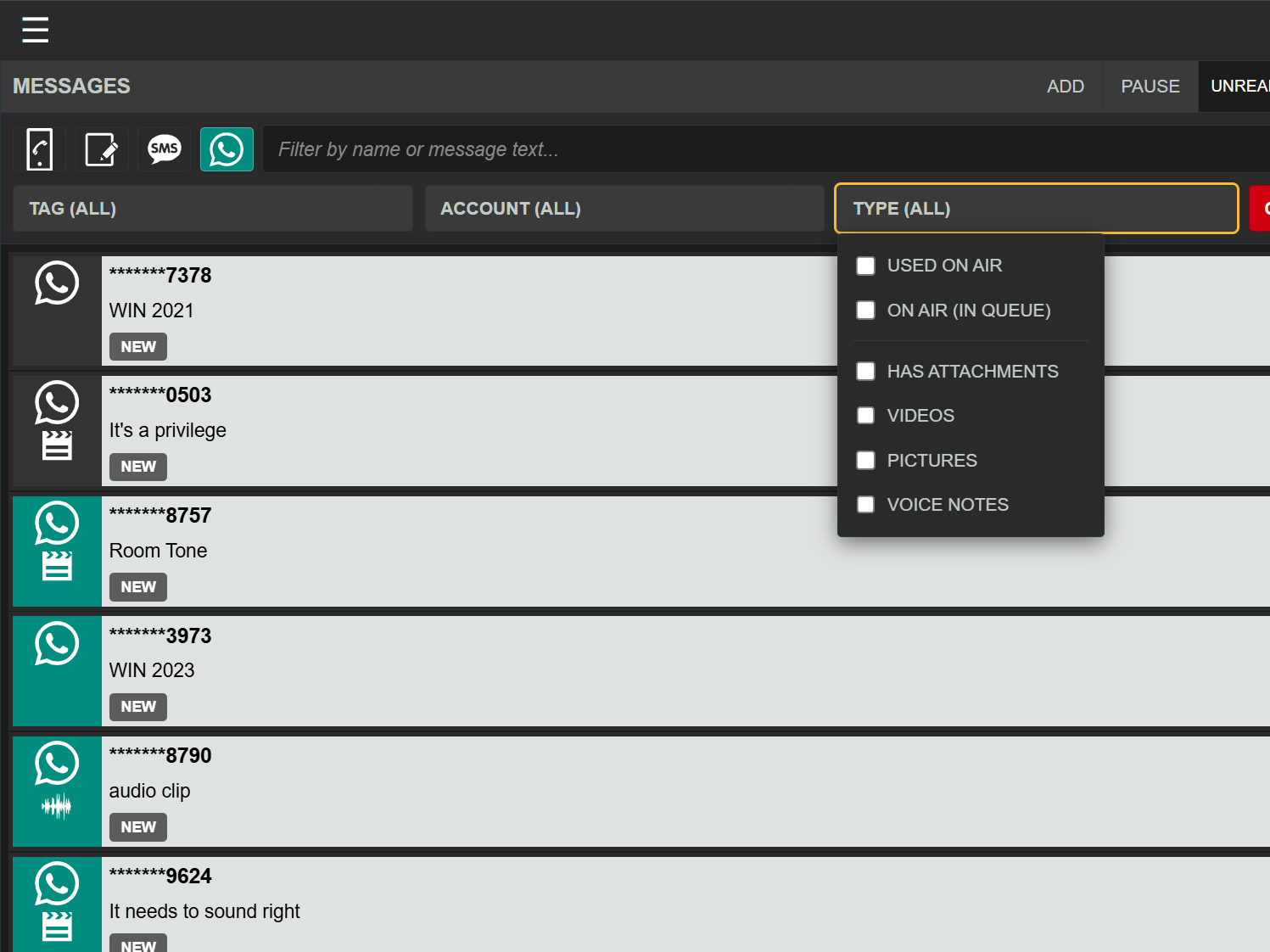
Depending on your setup, you may also be able to filter Messages by:
- account
- state (eg: already used On Air, Currently in the On Air Queue)
- Attachments (Images, Voice Notes, Vidoes)
- tags
- bookmarks
These filters are especially helpful when you need to work quickly through a particular kind of content, such as media messages or items already prepared for air.
Clearing filters
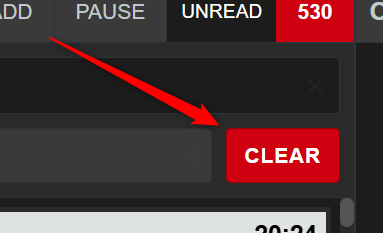
Whenever a filter is active, use CLEAR to return to the full message list.
If messages do not appear where you expect, first check whether a filter is still active or the Message Queue is pause. These are the most common reasons for messages seeming to be missing.