
Broadcast hardware, that isn’t hard.
Deploy new applications with ease, redundancy & backups with just a few clicks.
Virtual Rack, instead of physical space allocation uses “AUs” (Application Units).
Most applications will use 1 AU. Some may use more depending on CPU requirements. This allows for easy planning and power allocation to each application, ensuring reliability without the complexity.
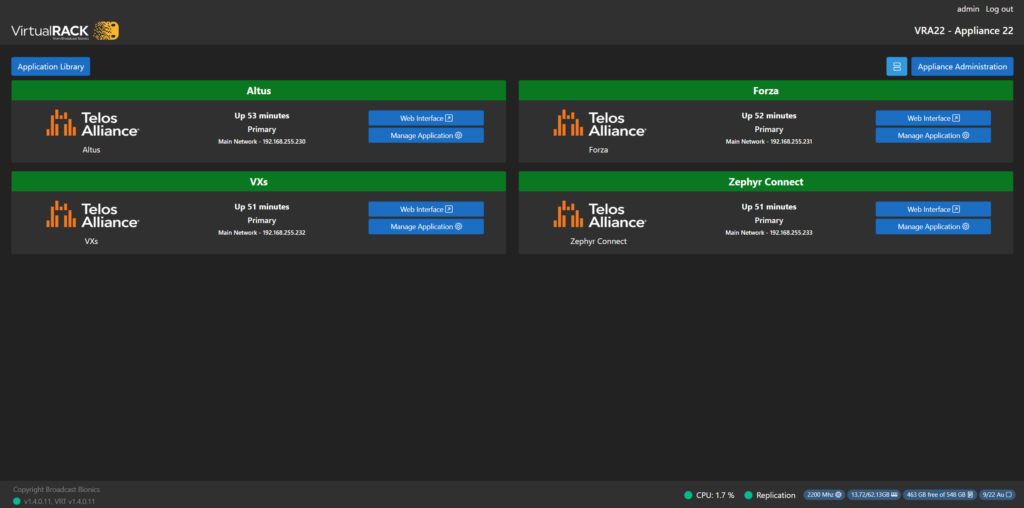
This window is the main overview for applications. From here the uptime, state, ip & application type are visible for each app.
The Application Library is where applications are downloaded, installed and imported.
The Appliance Administration window allows the management of the Virtual Rack itself.
The System status refers to the current state of Virtual Rack and the resources usage on the host machine.
Main Window
This window is the main overview for applications. From here the uptime, state, ip & application type are visible.
The top bar color indicates the current status of the application:

Green Indicates the application is running with no issues

Grey Indicates the application is currently offline.

Red Indicates the application has experienced a fault and is in a critical state.

Orange Indicates Failover is in effect. The application will be running on the failover VirtualRack at this time.

Application Library
The Application Library is where applications are downloaded, installed and imported.
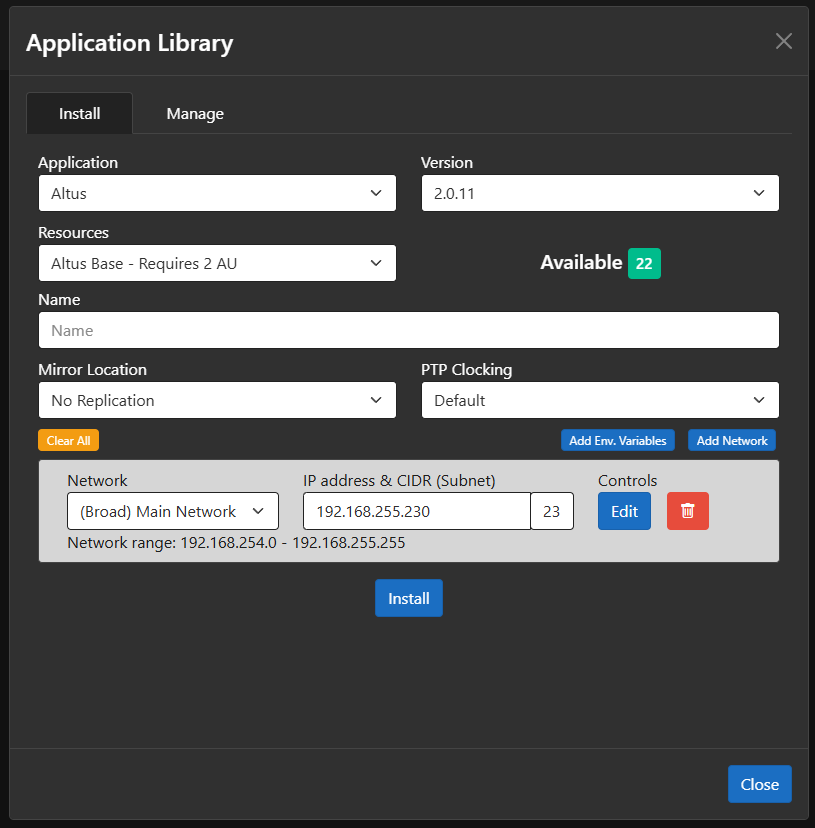
- The ‘Install’ tab allows the selection and creation of applications.
- Select the Version of the app.
- Name the application.
- Select a Mirror location if applicable.
- Select the Networking Port.
- Choose the IP address of the Application.
- The Library tab is for managing the available versions of applications.
- Download & update applications from here.
Appliance Administration
The Appliance Administration window allows the management of the Virtual Rack itself.
General Tab
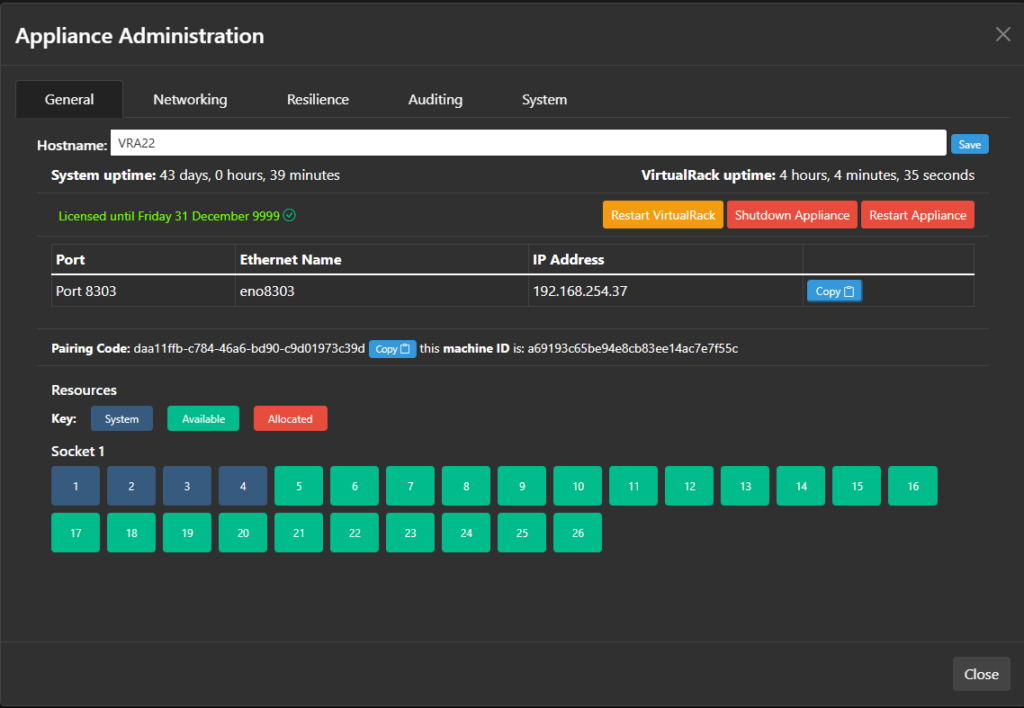
Here the Hostname can be set for the Virtual Rack, the version number can be seen and the information required to pair with another Rack for redundancy. See Pairing for more details.
Also visible on the general tab is the current usage of resources. This is in reference to how many AUs are in use.
Restart VirtualRack is a restart of the front end UI. This will not affect any running applications.
Shutdown Appliance will shut down the VirtualRack, this will take offline any applications running in addition to the UI.
Restart Appliance restarts the host machine, this will also take offline any Apps running on the VRA.
Networking Tab
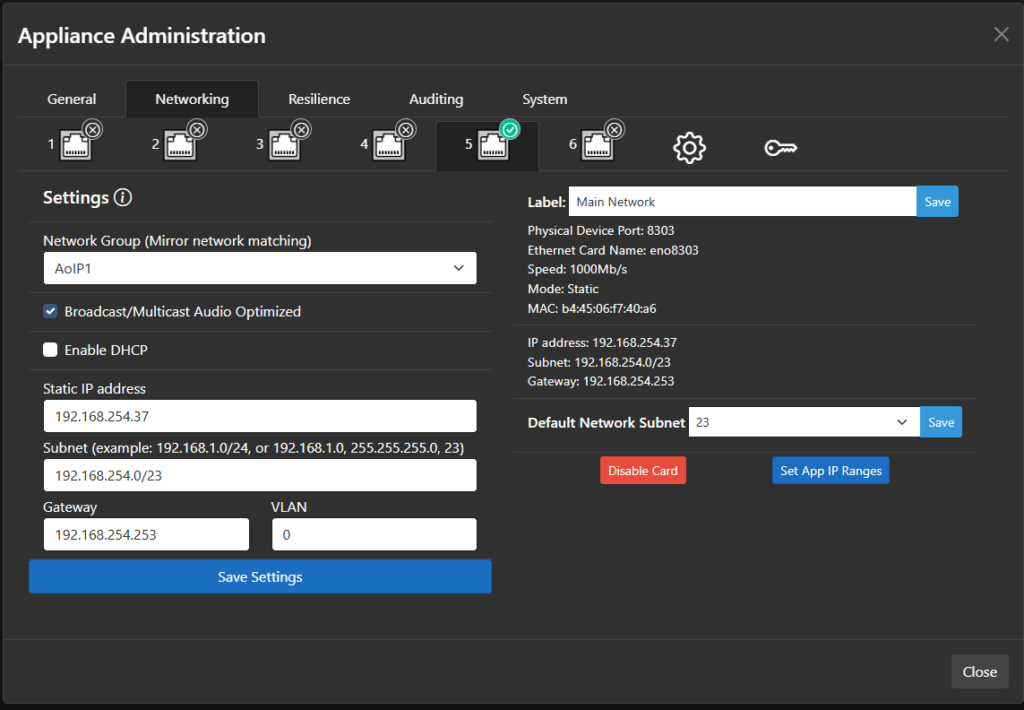
This tab is where the network settings are configured for the VirtualRack. See Networking for more detail
Resilience Tab
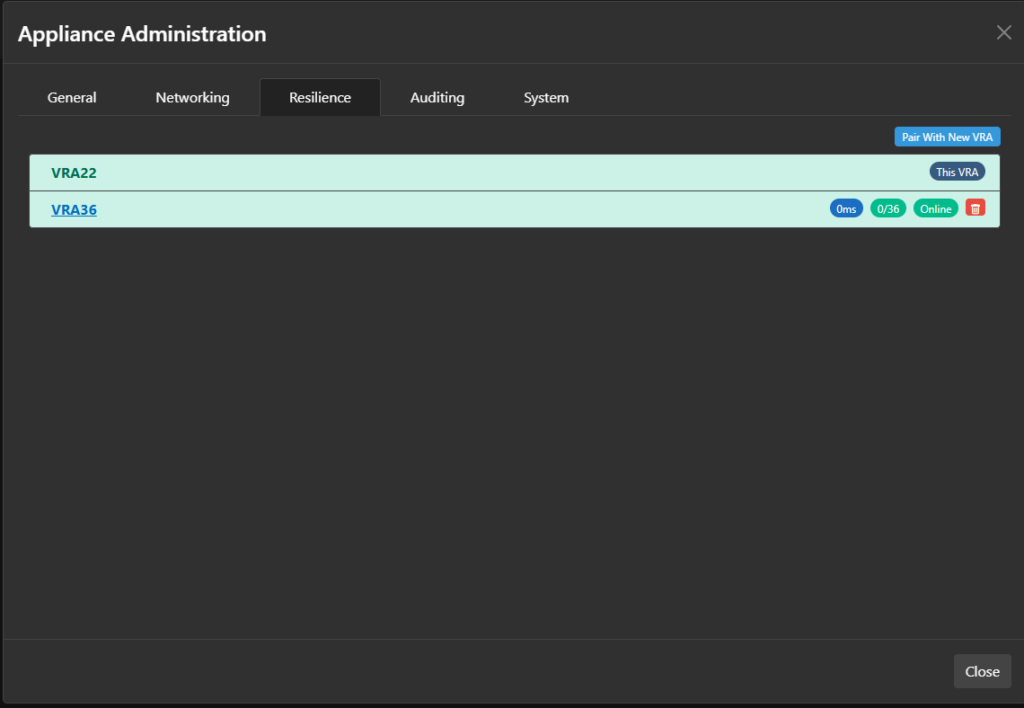
To pair 2 or more VirtualRacks together, use this tab.
As standard, it’s recommended to only pair two VirtualRacks together. Additional pairing is technically possible. Please contact your local support to discuss.
By clicking the “Pair with new VRA” button, the additional VirtualRacks IP & Pairing code can be entered. To find this code see the general tab of the connecting VRA.
Once Paired, it’s then possible to create application redundancy.
Auditing Tab
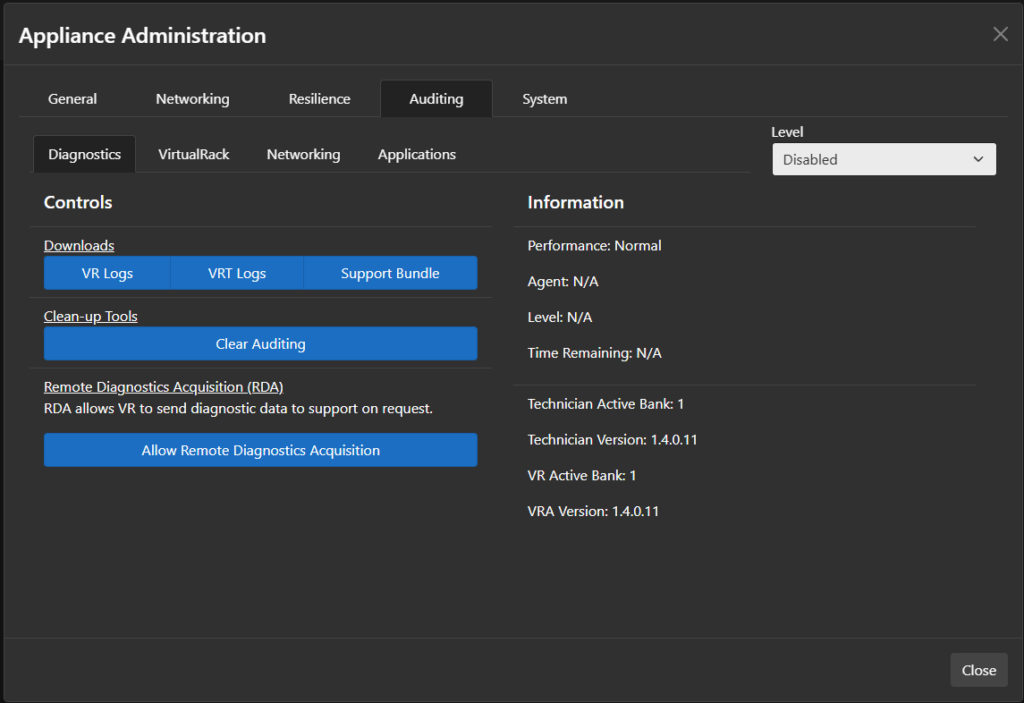
This Tab keeps an audit of actions & updates. If something unexpected happens, it’s likely the explanation can be found here. Support may ask for the associated Code with an Error or Warning to narrow down the cause of an issue

Updates Tab
This tab is for updating the version of VirtualRack
If Virtual Rack is downloaded, it is stored locally and can be installed offline at a later time.
If VirtualRack is experiencing issues, it can be reset through clicking “Repair”.
System Status

The System status area displays the current state and resource usage of your Virtual Rack appliance.
Replication
Displays the status of redundancy and failover.
“Good”
Failover is operational, and all paired appliances are active and connected.
“Compromised”
Something has disrupted connection between one or more paired systems, or one is now offline.
System
Displays the status of your appliance.
“Good”
The appliance is operational and running as expected.
“Critical”
Something has gone wrong with your appliance, or host machine.
Resources
These are the available resources of the host machine. If hardware recommendations have been adhered to, the host machine’s resources should always be sufficient to run any number/combination of apps available up to the maximum AU shown.