
Existing users are managed from User Management in the Configuration Portal.
From here you can search for users, review or change their settings, update their email address, copy an existing user, or remove users who no longer require access.
Searching for Users
Use the filter row to find users by name, email address or other identifying information.
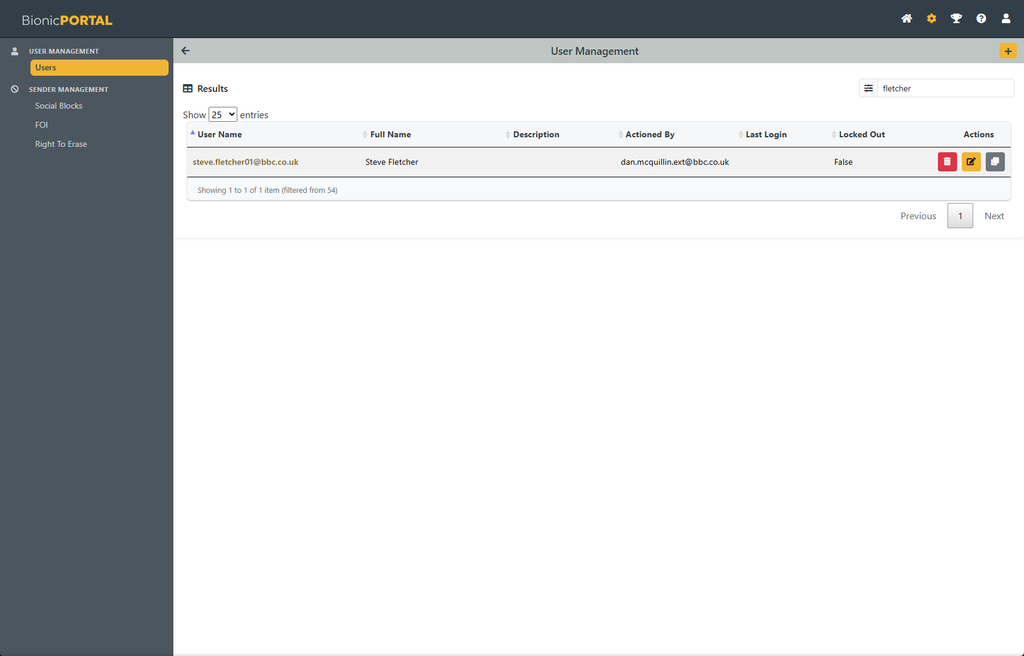
The Users page lists all users that you have permission to manage.
Use the Search box to quickly find a user by name, username/email address or other information displayed in the list.
The results also show useful account information including:
- User Name
- Full Name
- Description
- Actioned By
- Last Login
- Whether the account is Locked Out
The buttons in the Actions column allow you to delete, edit or copy a user.
Editing a User
Select Edit to open the user’s configuration.
From here you can update their details, permission groups and access to individual Brands, Stations and Shows.
You can also lock or unlock the user’s account where required.
Permissions assigned at user level are normally inherited by the Stations and Shows selected for that user. These can be overridden at individual levels where more granular access is required.
Remember to select Save after making changes.
Renaming a User
Changing a User’s Email Address
For Single Sign-On users, the email address is also their username and cannot be edited directly in the normal user details.
Instead, select Rename Username.
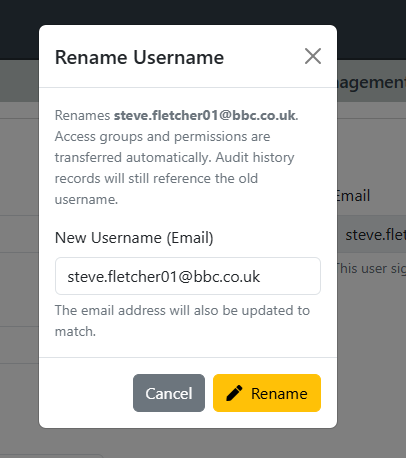
Enter the user’s new BBC email address and select Rename.
Renaming a username:
- updates the user’s username and email address;
- retains their existing access groups and permissions; and
- does not create a new user account.
For audit purposes, historical records created before the change will continue to reference the user’s previous username.
Use Rename Username when an existing user’s email address changes rather than deleting and recreating the user.
Copying a User
Select Copy User to create a new user based on an existing user’s configuration.
The new user inherits the selected user’s permissions and access settings, providing a quick way to create accounts for people who require similar access.
Enter the new user’s details and review the copied permissions before saving.
This is particularly useful when adding users who work on the same Brand, Station, Show or within the same team.
Important: Always review the copied access before saving to ensure the new user only has access to the areas they require.
Deleting a User
Select the Delete button alongside a user to permanently remove their access to the system.
Deleting a user should normally be used when they no longer require access.
If the user has simply changed email address, use Rename Username instead so that their existing permissions and configuration are retained.
Administrator Access
Administrators can only manage access and permissions for the Brands, Stations and Shows that they themselves are authorised to administer.
This prevents an administrator from granting another user access to areas outside their own administrative scope.