
The Logins report provides an overview of user activity within Bionic Portal.
It can be used to see how many users were logged in at the same time, identify periods of highest usage, and review when user sessions started and ended.
Selecting the reporting period
Use the controls at the top of the report to define the period and users you want to analyse.
You can select:
- Start Date and Start Time
- End Date and End Time
- Interval – for example 15 minutes
- User – select an individual user or leave as All users
Frequently used periods can also be selected using the Quick Range options:
- Today
- Yesterday
- Last 7 days
- Last 30 days
Select Show logins to update the report using the chosen settings.
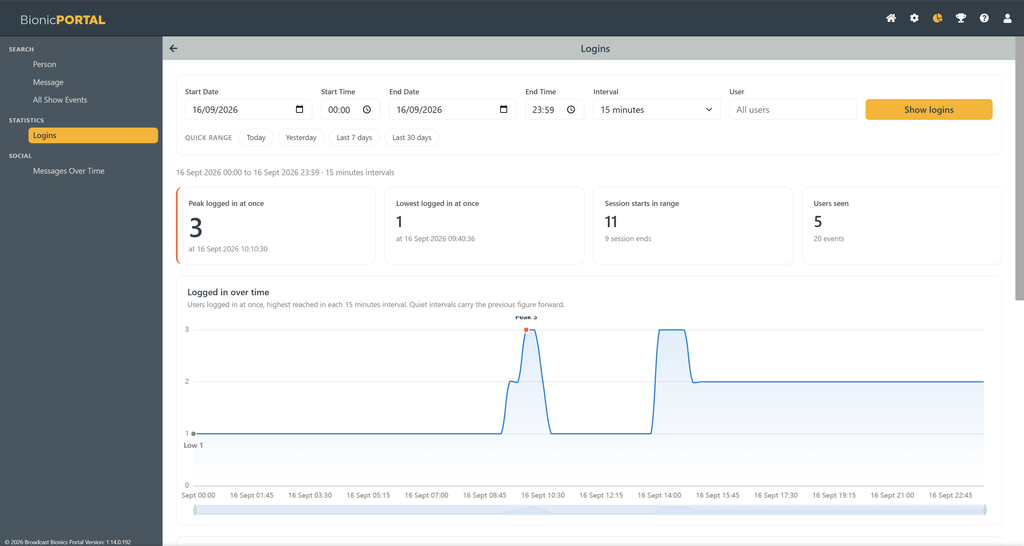
Summary
The summary cards show the key login information for the selected period:
- Peak logged in at once – the highest number of simultaneous logged-in users, together with the time the peak occurred
- Lowest logged in at once – the lowest number of logged-in users recorded during the period
- Session starts in range – the number of login sessions that started during the selected period, together with the number of session ends
- Users seen – the number of distinct users seen during the period, together with the total number of login and logout events
Logged in over time
The Logged in over time chart shows the number of users logged in throughout the selected period.
The data is grouped using the selected interval. For example, when 15 minutes is selected, the chart shows the highest number of simultaneously logged-in users reached during each 15-minute period.
Where no login or logout event occurs during an interval, the previous number of logged-in users is carried forward. This allows the chart to represent the number of active sessions continuously rather than dropping to zero simply because no new event occurred.
The highest and lowest recorded values are highlighted on the chart.
The range control beneath the chart can be used to focus on a particular part of the selected period for closer inspection.
Reporting on an individual user
To investigate the activity of a particular user, select them from the User filter and select Show logins.
This applies the same reporting tools to that user’s activity, making it easier to review when their sessions began and ended and when they were logged into Bionic Portal.