
Firstly, download and install the Advantech IO Module Utility from the Advantech website (https://www.advantech.com/ , click Support, then Support & Downloads and search Advantech IO Module Utility)
Next plug in the ethernet cable and power up the ADAM-6066
Launch the Advantech IO Module Utility Software
Click on Ethernet, then the search icon as highlighted below:
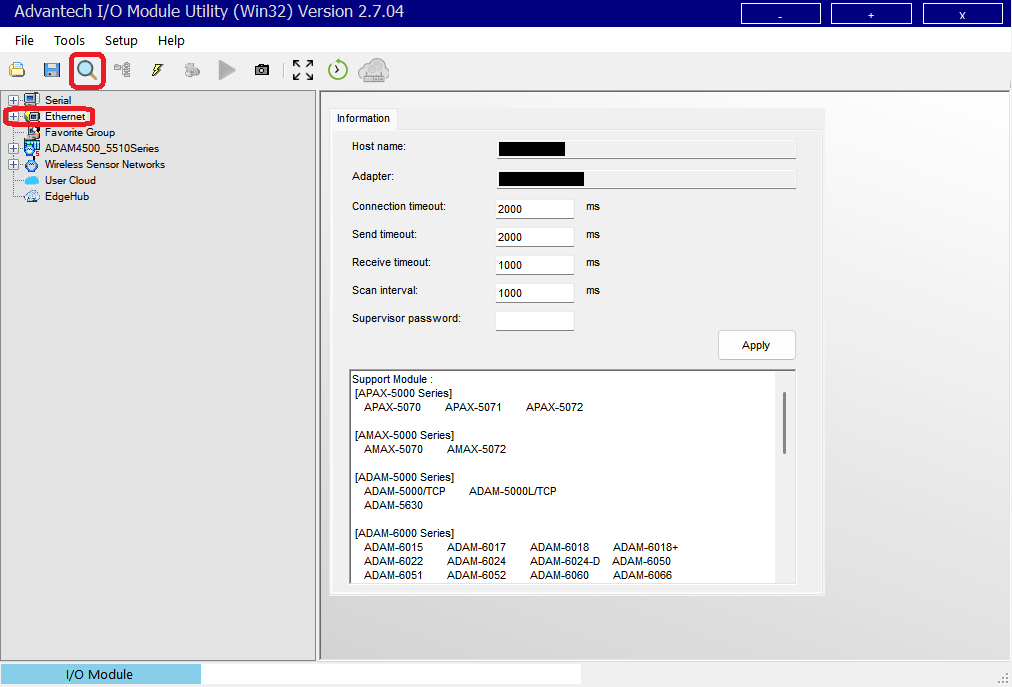
It should then search for the module.
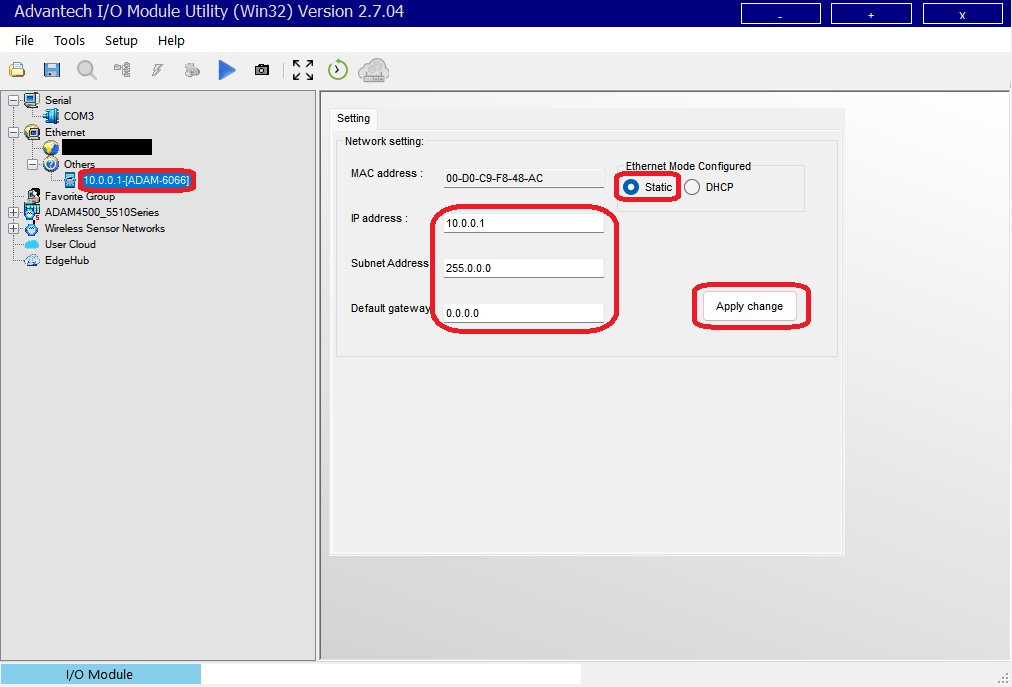
Once it has finished searching, it will appear under Others.
Click on it.
The IP address, subnet and gateway should now be configurable.
It is recommended to set it to a static IP address on the same network as the CallerOne PC.
Click Apply change.
(If it asks, the default password for this device is 00000000)
Next, it needs to be set up in CallerOne.
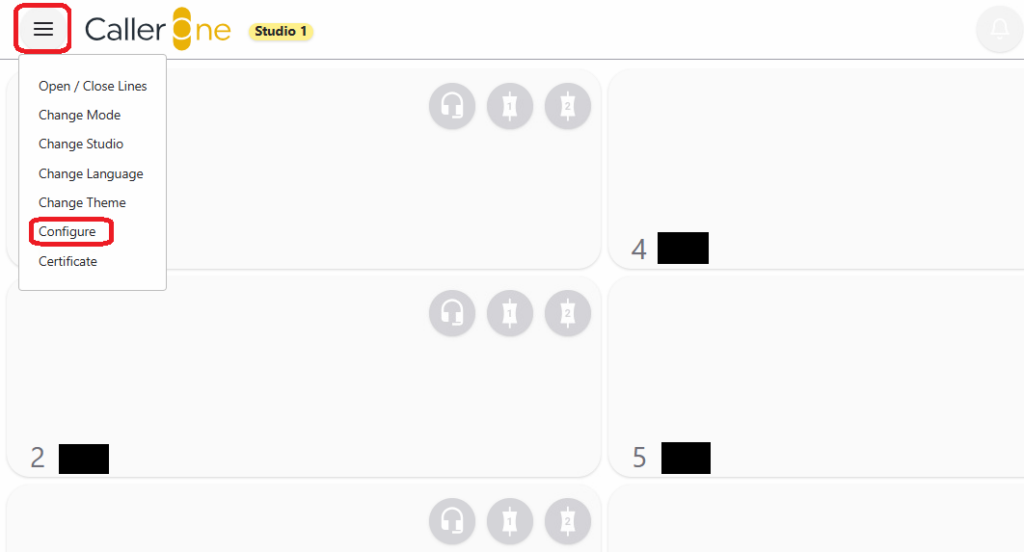
In CallerOne, click on the menu, then go to Configure:
Select Administrator and type in the password, then Log in.
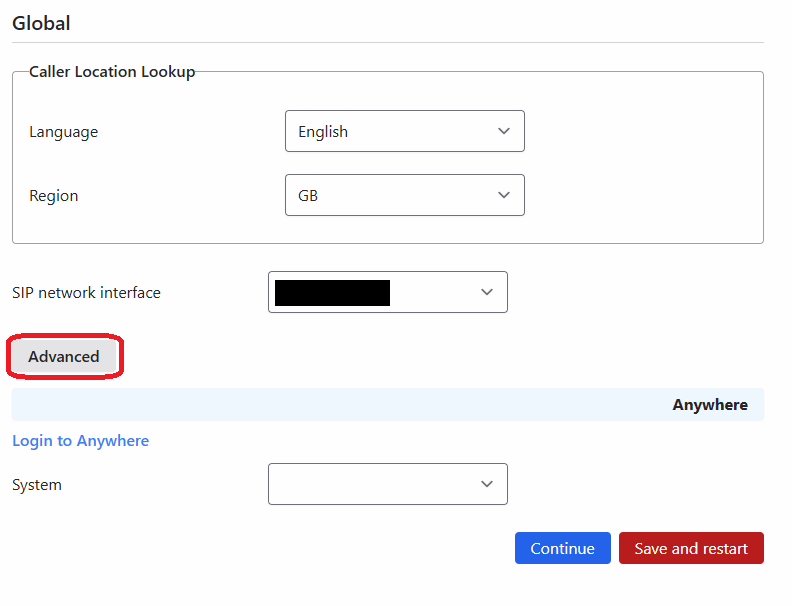
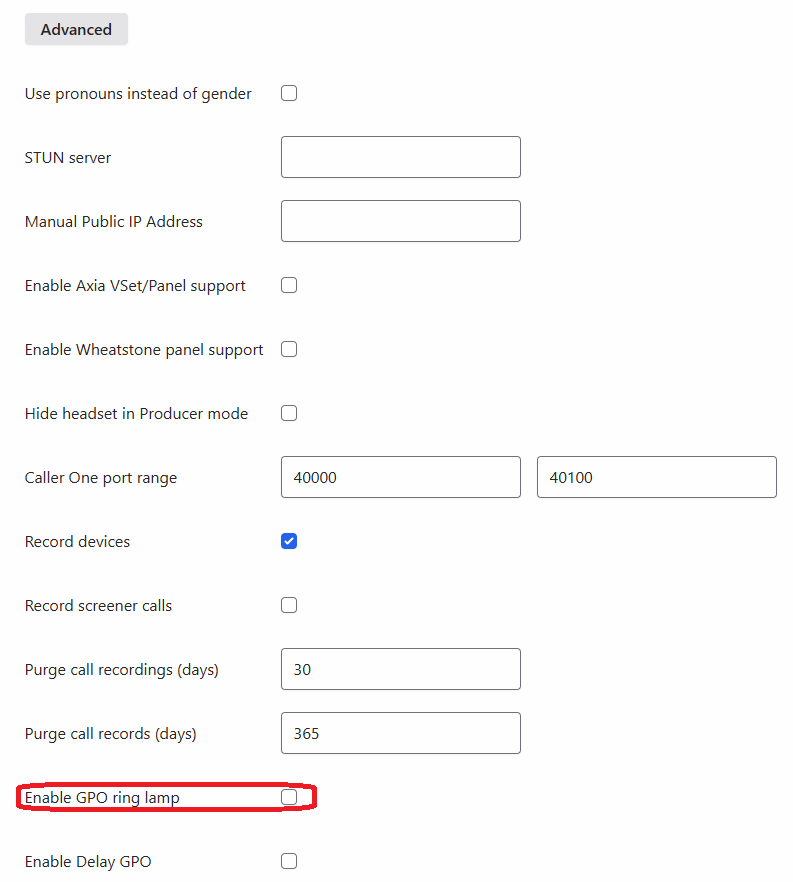
Select Advanced:
Enable GPO ring lamp:
A few extra boxes should now appear:
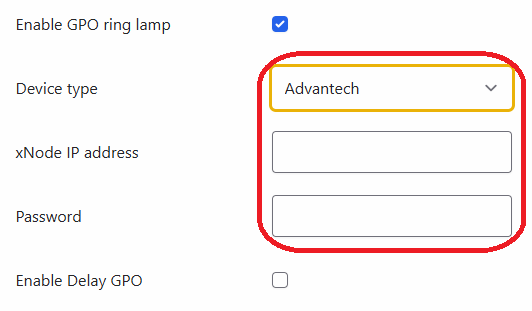
Select Advantech, fill in the IP that was set for the ADAM and fill in the password (default 00000000).
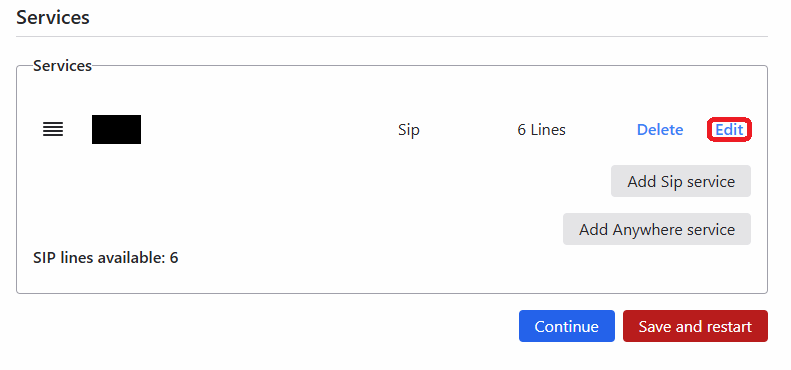
Click Continue at the bottom of the page until the Services section is reached.
In Services, click Edit next to the desired service:
Scroll down to the bottom and click Advanced:
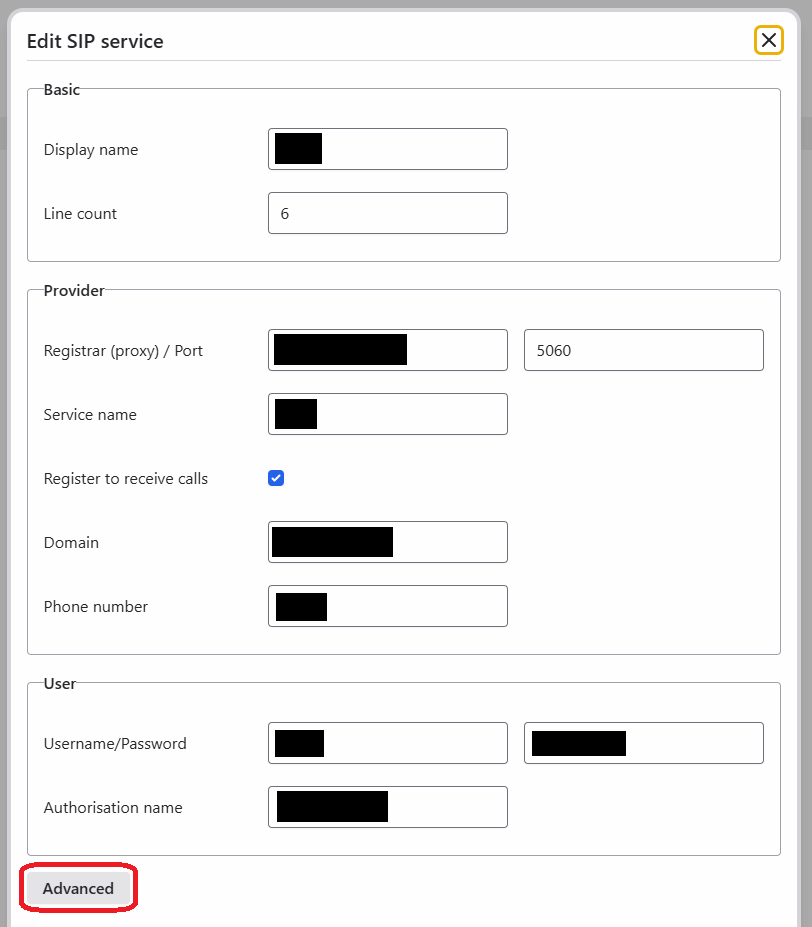
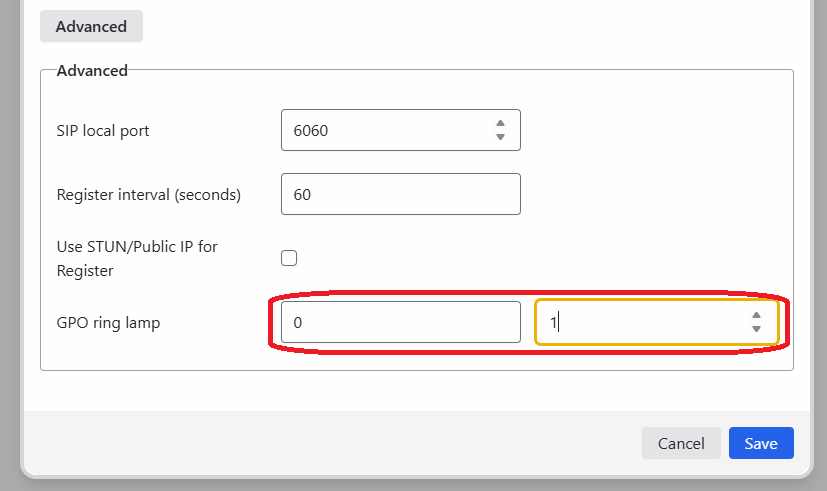
A few options should now be present to set the ring lamp for the service.
For the ADAM-6066, only the last number needs to be set.
There are 6 GPOs available on this particular model.
The first GPO starts at 1.
The example below shows 1 for the first GPO on the ADAM:
Click Save.
Click Save and restart at the bottom of the Services page.